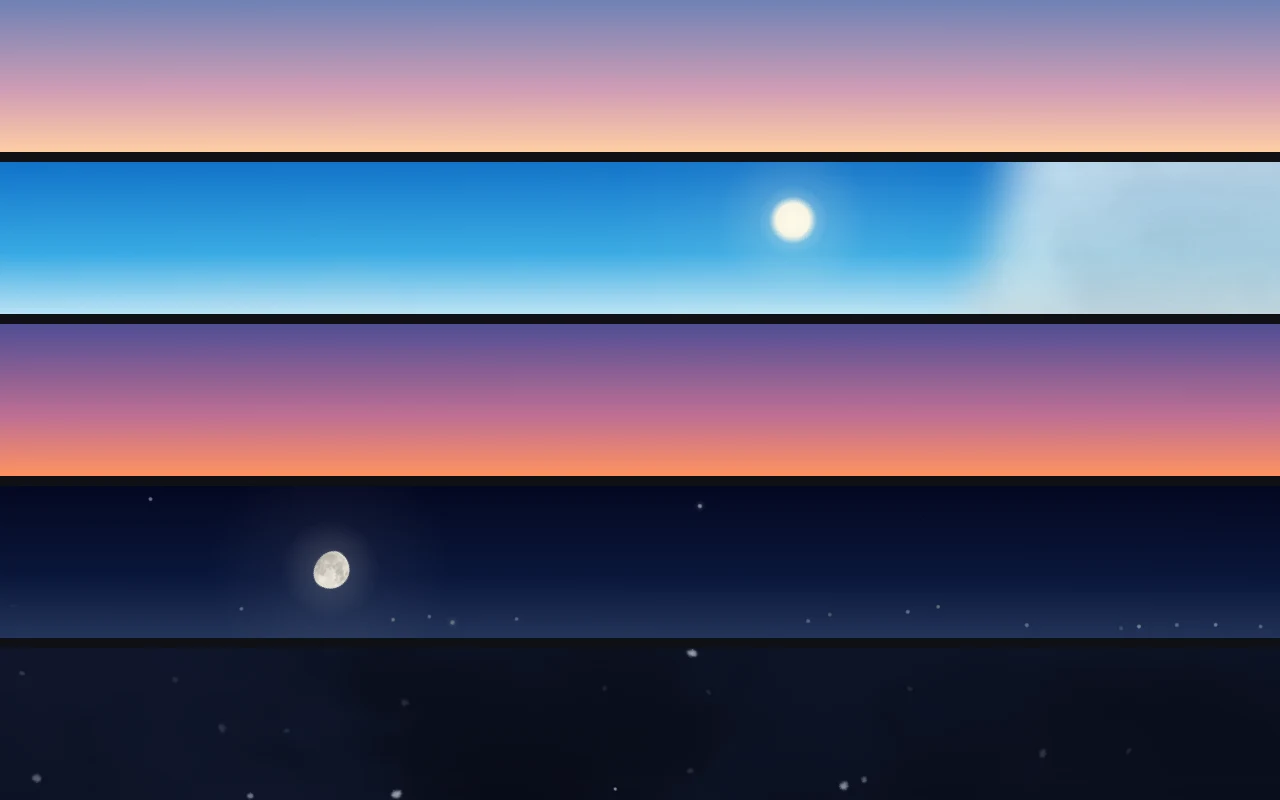
This is a row-by-row reference to the menu that controls a small sky drawn behind the Mac menu bar. The rows are grouped by what they act on: the discs, the hour, the weather, the sound, and the app itself. Where one row switches another, that is noted too.
Click to show, right-click for the menu
Petit Sky has no window of its own. Everything goes through its icon in the menu bar. A click on the icon shows the sky or hides it. A right-click (or a Control-click) opens the menu, and every row described here is in that menu.
All of the rows are available from the first launch. Settings stay on the Mac.
Sun and Moon
Sun and Moon shows or hides both discs, together with their glow. The color of the sky stays as it was. With the discs hidden, noon is still blue and dusk still goes through its twilight colors.
With the row on, the sun and the moon are drawn the same size, as they look in the real sky. The moon keeps its phase and the side that is lit. Thick clouds hide either disc, and thin ones let it glow through.
Current time and Running
Current time is on by default. With it on, the sky is the sky of this hour. The sun, the moon and the stars are placed for the Mac's clock and time zone: the time zone gives a representative city (Asia/Tokyo gives Tokyo), and the positions are calculated from there. This part needs neither a location nor a network connection.
Turned off, the sky keeps the hour it was showing and runs on from there. The Time slider and the Time of day buttons in the next section choose a different hour.
Running starts and stops the sky's clock. While it is stopped the row reads Paused, and the sun, the moon and the stars stay where they are. The rest keeps moving: clouds drift, rain and snow fall, stars twinkle, and a meteor still crosses now and then.
Time and Time of day
Time is a slider through the day. Moving it sets the hour of the sky and turns Current time off.
Time of day is a set of four buttons, each a fixed hour:
- Morning: 6:00
- Noon: 12:00
- Evening: 18:00
- Night: 22:00
Pressing one turns Current time off as well.
A chosen hour is a starting point. While Running is on, the sky moves on from it at the pace of the clock, and after 23:59 it carries on into the next day. To hold one hour in place, choose it and then turn Running off.
Choosing an hour either way also turns Current weather off. The reason is under Current weather below.
Weather
Weather is the list of skies that can be chosen by hand. There are six:
- Clear: no clouds.
- Fair: some clouds.
- Cloudy: more clouds, and thicker. At night, only the brighter stars show, a little dimmed.
- Rain: a mix of fine drizzle, ordinary drops and a few heavier ones.
- Snow: soft flakes of different shapes. Most drift and sway, some flutter, some fall in small spirals.
- Thunder: rain, with a single soft flash about once a minute.
In rain, snow and thunder the night sky has no stars and no meteors, because the sky is covered.
Whatever the weather, the menu titles stay readable. Rain, snow, stars and the nearer clouds are drawn in the bands above and below the text, and the band behind the titles is left clear of them.
Choosing any of the six by hand turns Current weather off.
Current weather, from Apple Weather
Current weather is off by default. Turned on, it takes the weather for the sky from the current conditions that Apple Weather reports for the Mac's rough location. It shows conditions as they are now and does not forecast.
It asks at most once an hour and at most 24 times a day, and only while the sky is shown and the Mac is awake and unlocked. The location is rounded to 0.1 degree (about 10 km) before it leaves the Mac, and it is used only while this row is on. While the row is on, the menu shows the Apple Weather attribution with a link to Apple's legal page.
Current weather is only shown with the sky of now. That ties it to other rows:
- Turning it on also turns Current time on and resumes Running.
- Turning Current time off, or choosing an hour with the Time slider or a Time of day button, turns Current weather off. The weather that was showing stays as the chosen one.
- Choosing a weather by hand turns it off.
Turning Running off leaves it on.
Sound and the Volume slider
Sound starts off. Turned on, it plays a recording that matches the weather:
- Clear, fair and cloudy: a light breeze.
- Snow: the same breeze, muffled.
- Rain: rain.
- Thunder: heavier rain, with thunder a few seconds after each flash.
Volume is a separate slider for how loud the recording plays.
The recordings come from Freesound and are all CC0. They are inside the app, so turning Sound on downloads nothing.
Open at login, and the About panel
Open at login is off until you turn it on. With it on, the app opens when you log in to the Mac.
About Petit Sky opens a panel with the version, a short description, and two optional thank-you items: a cup of coffee and a bag of coffee. Buying either one changes nothing in the app.
What macOS settings change in the sky
Some macOS settings outside this menu change the sky.
Reduce motion holds the sky still. Twinkling, meteors and falling rain or snow stop, and the clouds stop drifting. The thunder flash is suppressed as well.
Dim flashing lights suppresses the thunder flash.
Show menu bar background decides whether the sky can be seen. The sky shows while that setting is off, which is the default on macOS 26. Reduce transparency and Increase contrast hide the sky too while either is on. While the sky is hidden, a row at the top of the menu says so, and clicking it opens System Settings.
A screen reader gets a name for every row in the menu, and the rows that switch on and off report their state as a value.
On a display with a notch, the sky does not extend into the notch area.